
How do you use a Minecraft biome finder?
Use a seed map when the seed is known; use owner settings or a permitted workflow when it is not.
For a known seed, open a reputable Minecraft biome finder, enter the complete signed seed, select Java or Bedrock, choose the closest Minecraft version, and open the biome layer. The result is a prediction of generated terrain. It is useful for planning a base, searching for a rare biome, or checking a route before you travel.
A biome finder does not recover an unknown seed from a screenshot, a server IP, or a few coordinates. If you own the world, read the seed in world settings or from an approved export. On a permitted Java server, the server seed guide explains the owner and operator paths before any client-side analysis.
If you are looking for a structure rather than terrain, use the Minecraft structure finder guide. If you need a Java-only slime calculation, use the slime chunk finder. Keeping biome, structure, slime, and seed-recovery jobs separate prevents a correct tool from being used with the wrong expectation.
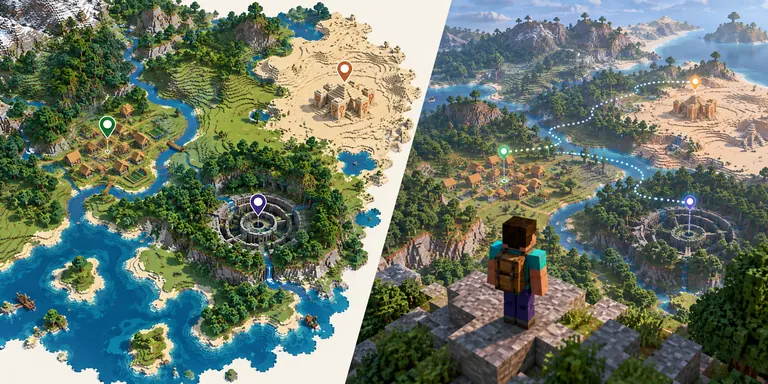
Minecraft biome finder methods compared
The phrase biome finder can describe a map, a command, or a manual route. Compare the required input before choosing.
| What you have | Best fit | What it can answer | Main limit |
|---|---|---|---|
| Known seed + edition/version | Biome map or seed viewer | Where a biome should generate | A wrong seed or version shifts the result |
| Loaded world + permission | The active edition's locate suggestions | A supported in-game location query | Syntax and permission differ by release |
| Unknown seed + owner access | World settings, level data, or export | The actual seed for the world | Requires owner or approved file access |
| Unknown seed + permitted Java client | SeedCrackerX observation workflow | Seed candidates from supported evidence | Java/Fabric, version-sensitive, and not a biome map |
| Only a screenshot or server address | Ask the owner or stop | No trustworthy biome coordinate | A website cannot read private chunks from an address |
Copy every digit and a leading minus sign.
Choose Java or Bedrock before reading a map.
Match the release that generated the target chunks.
Editorial HTML/CSS information graphic: the three inputs that should be checked before trusting any biome coordinate.
Use a seed map when the world seed is known
A Minecraft seed biome finder predicts terrain; it does not inspect the save file or confirm that a pin is correct.
Begin by copying the seed from the world settings or the owner. Preserve the full signed value. A missing minus sign, a pasted space, or a text seed converted differently by another tool creates a different world. Write down the edition, exact version, dimension, and generator settings beside the seed so you can audit the result later.
In the map, select the same edition and the closest supported release. Then choose a biome layer and zoom to a coordinate or region. For a rare biome, inspect the surrounding landforms rather than relying on one colored pixel. Rivers, coastlines, mountain chains, and nearby structures make better verification landmarks than a single biome boundary.
The companion Minecraft seed guide covers safe ways to obtain a seed, while the village guide shows how a known-seed map differs from a locate command. Use the map as a planning hypothesis, then confirm the terrain in the actual world before building a long route or publishing coordinates.
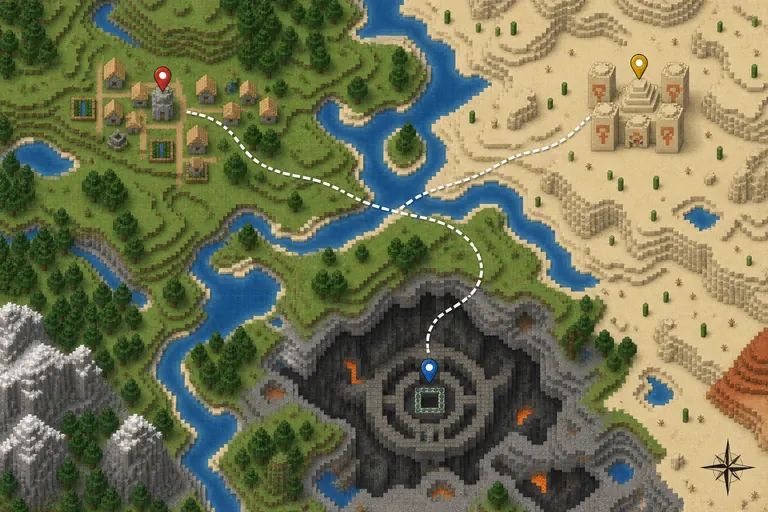
Java and Bedrock biome finders are not interchangeable
Edition selection is a core input, not a cosmetic dropdown.
Java and Bedrock can use different map profiles, command identifiers, and generation behavior. Select the edition that created the world, then choose the exact release or the closest supported profile. A Java result copied into Bedrock can look plausible at a glance while still placing a biome in the wrong region.
The official SeedCrackerX project is a Java Fabric mod, not a Bedrock, mobile, console, Forge, or NeoForge biome finder. If your goal is only to locate a known Bedrock biome, use a map that explicitly supports Bedrock. If the Bedrock seed is unknown, start with owner settings, a world export, or a Realm download rather than a Java recovery claim.
Modded terrain needs an extra check. Terralith, Tectonic, biome overhaul packs, and custom generators can change the terrain a vanilla map expects. Keep the map result labeled as vanilla or modded, and do not call a vanilla coordinate a verified location in a custom world.
| Check | Java | Bedrock |
|---|---|---|
| Map profile | Choose the Java release that generated the chunks | Choose the Bedrock release and map profile |
| Unknown seed | Owner path or permitted Java observations | Owner settings, export, or Realm path |
| Commands | Use the current Java autocomplete | Use the current Bedrock autocomplete |
| Custom generator | Vanilla map may not match | Vanilla map may not match |
Large biomes, biome maps, and modded worlds
A large-biome world changes the scale of the search, while a custom generator can change the answer itself.
The question how to include larger biomes in a seedfinder Minecraft workflow usually means the world was created with the Large Biomes setting. Treat that setting as part of the world identity. A standard map profile may show the right seed but the wrong biome footprint if it does not model the same generator option.
For a Minecraft biome map, start with a broad view and identify a stable landmark such as a coastline, a large river, or a mountain chain. Then zoom into the target biome. This is more reliable than selecting a tiny patch first because a small boundary can move when the edition, version, or generator setting is wrong.
Terralith and other datapacks are a separate case. Search results may call them a seed finder, but a vanilla biome map cannot promise their custom biomes. Record the pack name and version, check its own documentation, and use a map only as a rough vanilla comparison unless the tool explicitly supports that generator.
Check Large Biomes and other generator settings.
Use a profile that models the same release.
Write down Terralith or other custom generators.
Compare a coast, river, or mountain in game.
Editorial HTML/CSS information graphic: large-biome and custom-generator checks belong in the same evidence note as the seed.
When a command or exploration route is better
A map is not always the fastest answer once you are inside a permitted world.
If you have command permission, use the active edition's suggestions for biome or structure queries. Command names and identifiers change, so an old tutorial should not outrank the autocomplete in the current client. A command result answers the loaded world's location question; it does not reveal an unknown seed or authorize access to someone else's world.
Without a seed, commands, or owner help, exploration is the honest fallback. Use a compass or written coordinates, search open terrain first, and mark a repeatable grid so you do not cross the same region twice. This route is slower, but it works without claiming that a third-party map can read private world data.
For structure-specific commands, the structure finder guide separates known-seed maps, /locate, and authorized Java observations. For seed recovery itself, use the SeedCrackerX setup guide only when the Java version, Fabric loader, and server permission match.
- Use current command autocomplete instead of copying an old identifier.
- Keep the dimension attached to every coordinate note.
- Ask a server owner before commands, exports, or client observations.
- Use a marked exploration route when the seed and commands are unavailable.
Why does a Minecraft biome finder show the wrong place?
Most mismatches come from one wrong input, not from a mysterious map failure.
Recheck the signed seed first. Then compare Java or Bedrock, the exact release, dimension, Large Biomes setting, and any datapack or custom generator. If one of those differs, the map may be calculating correctly for a different world. A screenshot of a colorful map is not evidence that the selected profile matches your save.
If a boundary is close but not exact, compare a second landmark. A coastline or mountain chain is a better test than a single biome edge. If multiple landmarks disagree, stop changing random settings and record the map URL, date, seed, edition, version, and generator before asking the owner or tool maintainer for help.
Do not download a universal biome-finder JAR just because a search result uses the word finder. Check the maintainer, loader, version, and source. The site's SeedCrackerX download page and GitHub source guide explain how to verify a Java mod, but neither page turns SeedCrackerX into a browser biome map.
| Symptom | Likely cause | Next check |
|---|---|---|
| Every biome is shifted | Wrong seed sign, edition, or version | Re-enter the complete seed and profile |
| One boundary is off | Generator option or custom pack differs | Compare a coast or mountain too |
| Bedrock result looks like Java | Wrong map profile | Select Bedrock explicitly |
| Terralith world does not match | Vanilla map cannot model the pack | Use pack documentation or an approved map |
| A mod promises instant lookup | Tool types or sources are mixed | Verify maintainer, loader, and release |
Do not trust one colorful pin.
Test a second landmark in the real world.
Save seed, edition, version, dimension, and pack.
Editorial HTML/CSS information graphic: verify inputs and evidence before replacing a working map with an unverified download.
What this Minecraft biome finder guide does not promise
A clear boundary is part of a useful answer.
This page does not host a live biome map, accept a world upload, calculate a private server seed from an IP, or certify a third-party download. The diagrams are conceptual illustrations, and the map links remain external tools. Check their current edition and version support before relying on a result.
The practical decision is short: known seed means a version-matched biome map; permitted world means current commands or owner-approved tools; unknown Bedrock seed means owner settings or export; custom terrain means generator-specific documentation. If none of those inputs are available, ask the owner or stop rather than inventing a coordinate.
For related work, use the Minecraft seed generator only for new random worlds, the seed methods guide for an existing world, and the structure finder guide when the question is about a building rather than a biome.